

- 00000018WIA30BB3870GYZ
- id_400253831.6
- Apr 20, 2022 9:13:43 AM
Workstation
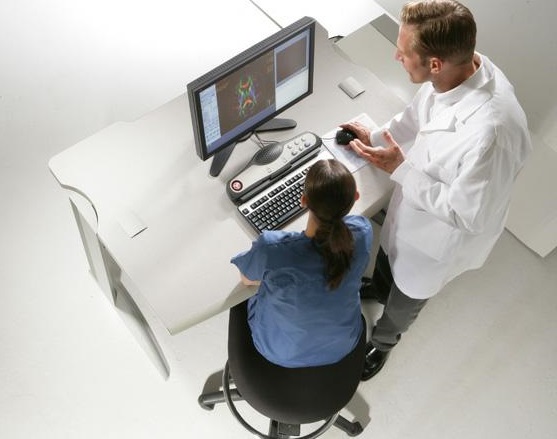
The workstation monitor displays images and scan, display, archive, network, service, and iLinq programs. It also displays protocol notes and physiological waveforms when they are activated. AutoView is always displayed in the upper right area of the monitor. All routine operations are carried out from this workstation monitor.
The monitor can be raised and lowered, tilted forward or backward, or rotated left to right. Adjust the monitor's height and tilt for a comfortable viewing position.
Computer
The computer is located in the cabinet stored below the desk.
| Component | Description |
|---|---|
| Reset | Insert a pin or ballpoint pen to press the button in the hole to reset the computer when the on/off button doesn't work. |
| USB ports | USB ports are used for:
|
| Power button | The power button turns the computer on and off. |
| CD/DVD drive | The CD/DVD drive is used by service to install software and the operator manual. The Read/Write CD/DVD drive is used to burn CDs or DVDs when using the CD/DVD for the following:
|
Keyboard
The keyboard contains all the keys you would find on any computer keyboard along with a few specialized buttons along the top. Standard keyboard keys and their functions include:
- Delete or Backspace erases characters.
- Enter confirms what is typed or selected.
- Tab moves across the areas on the current screen.
- Up or Down arrow keys move between text boxes or adjust window width or window level.
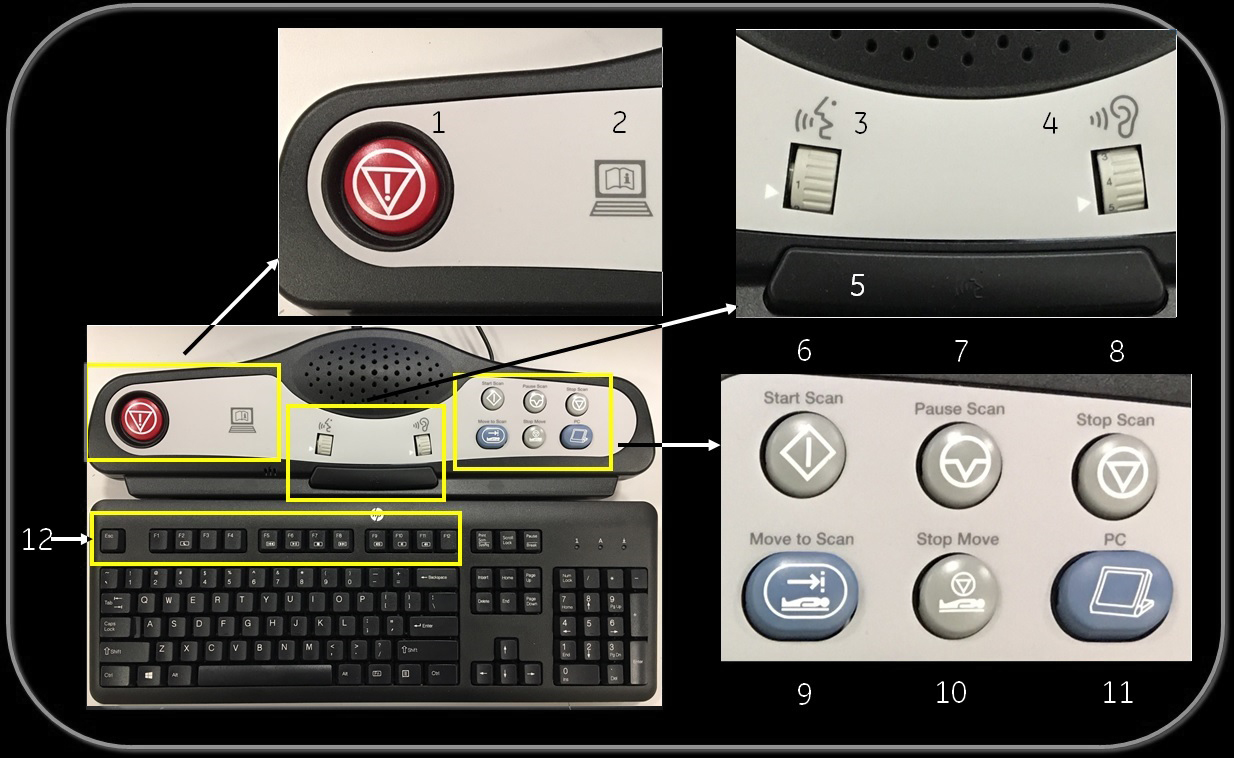
| Number | Selection | Description |
|---|---|---|
| 1 | Emergency Stop | Disables all electrical power sources near the patient. It shuts down the RF (Radio Frequency), gradient amplifier, table movement, shim power supply, and main MRI magnet power supply cabinets. It will not quench the magnet or turn off the computer. |
| 2 | eIFU | The eIFU symbol located by the Emergency Stop button indicates that there are electronic instructions for use on your MR system. |
| 3 | In-bore volume control | Regulates the in-bore volume for the patient communication system. |
| 4 | MR console volume control | Regulates the MR operator console volume for the patient communication system. |
| 5 | Talk to patient | Activates the intercom system so you can speak to the patient inside the bore. Press to talk, release to listen. |
| 6 | Start Scan | Resumes scanning after pause or breath hold techniques. |
| 7 | Pause Scan | Stops the scan temporarily. |
| 8 | Stop Scan | Aborts a scan or prescan. Scan data is not saved or reconstructed. |
| 9 | Move to Scan | Moves the cradle to scan position when pressed. |
| 10 | Stop Move | Stops the cradle movement when pressed. |
| 11 | PC Icons | Inactive. |
| 12 | Function Keys | Activates shortcuts in certain features. |
Mouse
The mouse is a hand-operated device that you maneuver across the surface of a pad. As you move it, the on-screen cursor mimics the movement of the mouse, allowing you to move among windows and menus. For instance, moving the mouse to the right causes the on-screen cursor to move to the right. The mouse is used to make selections by clicking the left, right, and middle buttons.
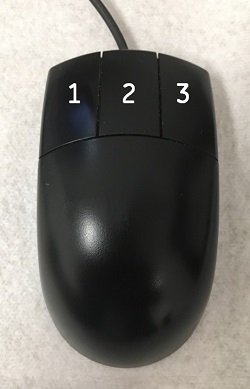
| Number | Description |
|---|---|
| 1 | Left button |
| 2 | Middle button |
| 3 | Right button |
| User manual instruction | Mouse action |
|---|---|
| Click | Click the left mouse button to select a button or icon. |
| Right-click | Click the right mouse button. |
| Middle-click | Click the middle mouse button. |
| Click and drag | Click and hold the left mouse button down while dragging the cursor to the desired location. |
| Right-click and drag | Click and hold the right mouse button down while dragging the cursor to the desired location. |
| Middle-click and drag | Click and hold the middle mouse button down while dragging the cursor to the desired location. |
| Double-click | Click the left mouse button twice in rapid succession. |
| Triple-click | Click the left mouse button three times in rapid succession. |