Use these steps to manage several 3D models simultaneously by temporarily storing a 3D model that you have modified. You can then restore it to a viewport whenever needed during the viewing session.
Step-by-step instructions
Open the MR General Review.
Make modifications to the 3D model, for example, use the scalpel tool and make a cut.
To temporarily save the model, follow these steps.
Right-click and select Save Volume.
If you want to execute another cut on the original volume, right-click Restore volume.
Make modifications and right-click Save Volume.
Repeat these steps to save up to 8 models.
To recall a 3D model to a viewport, follow these steps.
From the Export Toolbar, click the Save Recall icon ().
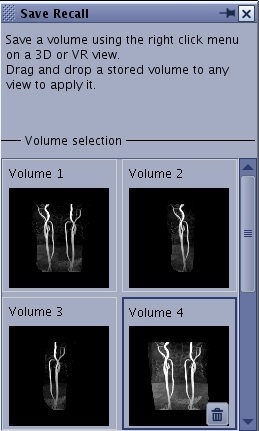
From the Save Recall screen, click and drag a stored volume to any viewport to apply it.
Figure 1. Save Recall screen
The prior view content is deleted and replaced with the moved model.
The recalled model will take on the properties of the view it replaced. For example, if a 3D model is dragged onto a coronal view it will be displayed as a coronal slice along with display parameters (window level/width, cut planes, colors, rendering mode, etc.) of the receiving view.
To delete a 3D model, follow these steps.
From the Save Recall screen, click the model you want to delete.


 ).
).
 ).
).