Export preferences: select save and export options
About this task
To view the Export Preferences screen, from the MR General Review work area, click the in the upper right corner. From the Preferences menu, click Export.
Figure 1. Preferences menu
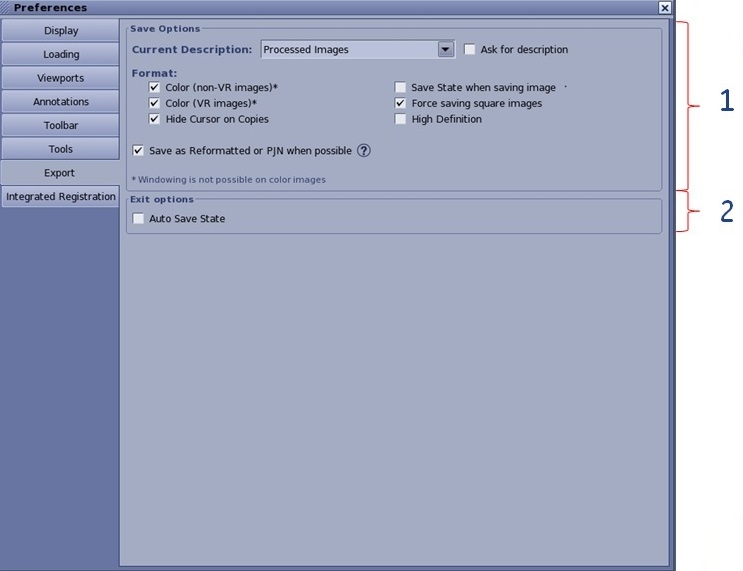
Figure 2. Export Preferences screen
Table 1. Image legend
Number
Description/Procedure
1
Save options
Select an option to determine the default image type when an images is saved.
Click Ask for description option box to display a popup message that requires a description for the saved image (i.e. “Save as…”). If unchecked, will use the default description set in Current Description.
Select the desired format options.
Color (non-VR images) saves non-VR images in Color. Due to DICOM format restrictions, Window Level and Width of color images cannot be modified. It is then recommended to de-select this option to be able to perform windowing adjustments when reading saved images in PACS or other DICOM viewers.
Color (VR images) saves VR images in Color.
Hide Cursor on Copies hides the cursor on the saved or filmed image.
Save State when saving images saves the current status of MR General Review (3D Model, displays, ROIs…) at the same time as saving the image. This Saved State can be used later on to restore the MR General Review State.
Force saving square images saves the images in a square rather than rectangular format.
High Definition does not apply to MR systems.
Save as Reformatted or PJN: Images saved under these formats contain geometrical information so that they can be reloaded in 3D software and freely windowed.
Select Save as Reformatted or PJN to save images in this format every time it is possible. Images saved under these formats contain geometrical information so that they can be reloaded in 3D software and freely windowed. Click the link [when possible] to display the list of image types that can be saved as Reformatted and PJN according to DICOM requirements.
De-select Save as Reformatted or PJN to benefit from Color and Save State capabilities every time you save an image.
Color and Save State options are not compatible with Reformatted DICOM format. These settings cannot apply to images which were saved as Reformatted.
2
Exit options
Click Auto Save State option box to have the system automatically save the state of MR General Review images when you click the Exit icon to end the application.


 in the upper right corner. From the Preferences menu, click Export.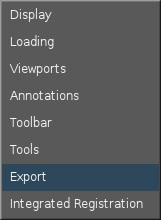
 to end the application.