

- 00000018WIA30A58980GYZ
- id_20353841.7
- Jul 24, 2022 12:48:34 PM
Start up the system
About this task
| Important | |
|---|---|
There are times during a system startup or reboot, that the MR system executes a thorough file integrity check (correcting corrupted files, bad blocks, capturing file system information for better analysis of issues, etc.). The startup or reboot can take as long as 40 minutes. The following criteria determines the check:
- If the system is not shut down in an orderly fashion, for example a power outage shuts down the computer.
Step-by-step instructions
- Click Start on the GE screen.
- If Auto Start is enabled from the Service Browser, the scanner applications automatically begin before a user logs on. A message displays with a 30 s count-down to logon.
- If Auto Start is not enabled, the system is in manual logon mode. The GE screen displays without the timer. The system waits to start the applications until you click Start. Then, the "Do Not Interact with the System" message displays followed by the Logon screen.
Figure 1. GE screen 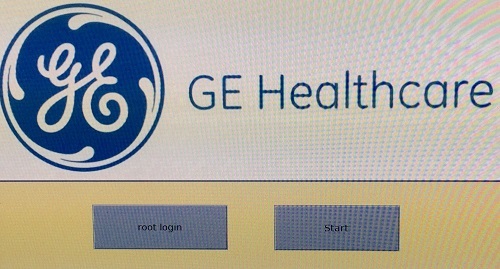
- Wait until all messages are removed from the screen to enter your logon name and password.
- In the Logon Name field, type your user name.
- Check with your system administrator for your specific logon credentials, if you don't know your logon name.
- In the Password field, type your password.
- Check with your system administrator for your specific logon credentials, if you don't know your password.
- To change the password, click Change Password. Type the old and new passwords as prompted. The password complexity needed is set by the system administrator.
- The Emergency Logon button is only visible if the administrator has enabled the Emergency Logon Allowed feature from the Application tab.
- The Emergency Logon button disabled is the default and the recommended option.
Figure 2. Enable Emergency Logon 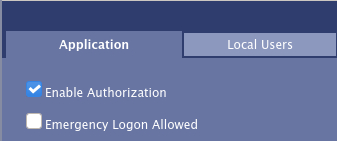
- If configured, you are automatically logged off after a period of inactivity. When you or another user logs back in, the system returns to its last known state.
- Click Logon.
-
Note: The upper area of the logon screen (GE logo area) changes based on your MR system.
Figure 3. Button and text box area of logon screen 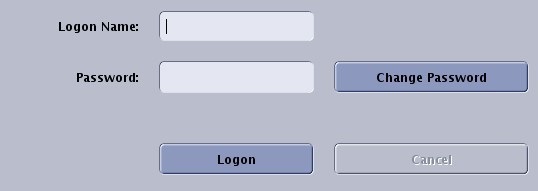
Important -
- In the Logon Name field, type your user name.