This procedure assumes you have defined the batch parameters for either an Oblique or Rotate batch. For details, see Create a batch series.
About this task
Use these steps to create a batch protocol that will appear in the Batch Protocol pull-down menu.
Step-by-step instructions
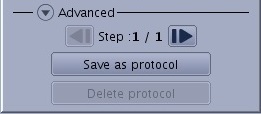
From the Oblique or Rotate tabs on the Batch screen, scroll to the bottom of the screen and click the Advanced arrow.
Figure 1. Advanced area of the Oblique or Rotate batch screens
Optional: click the Step Arrow icon () to add a new batch step to the Oblique or Rotate protocol and set the parameters for this new step as usual. Add as many steps as desired.
Click Save as protocol.
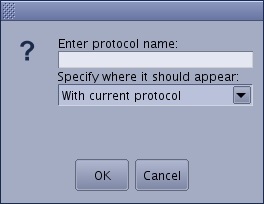
From the Save protocol dialog box, place the cursor in the text field and enter a name, such as Renal 5 mm.
If you enter a name that already exists, you are prompted to enter a new name. Figure 2. Save protocol dialog box
Select the batch protocol type.
With current protocol: the batch protocol is only available for the current Review protocol in the Batch protocols list at the top of the Batch screen.
As a layout preset: the batch protocol is saved as a new layout available inside MR General Review.
As new loading protocol: the batch protocol is saved as a new Protocol available from the main Protocol page. Select the anatomical area with this option.


 ) to add a new batch step to the Oblique or Rotate protocol and set the parameters for this new step as usual. Add as many steps as desired.