

- 00000018WIA3004F770GYZ
- id_400221491.2
- Mar 9, 2022 12:45:38 PM
Viewports preferences
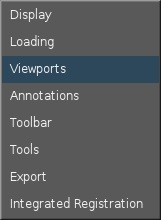
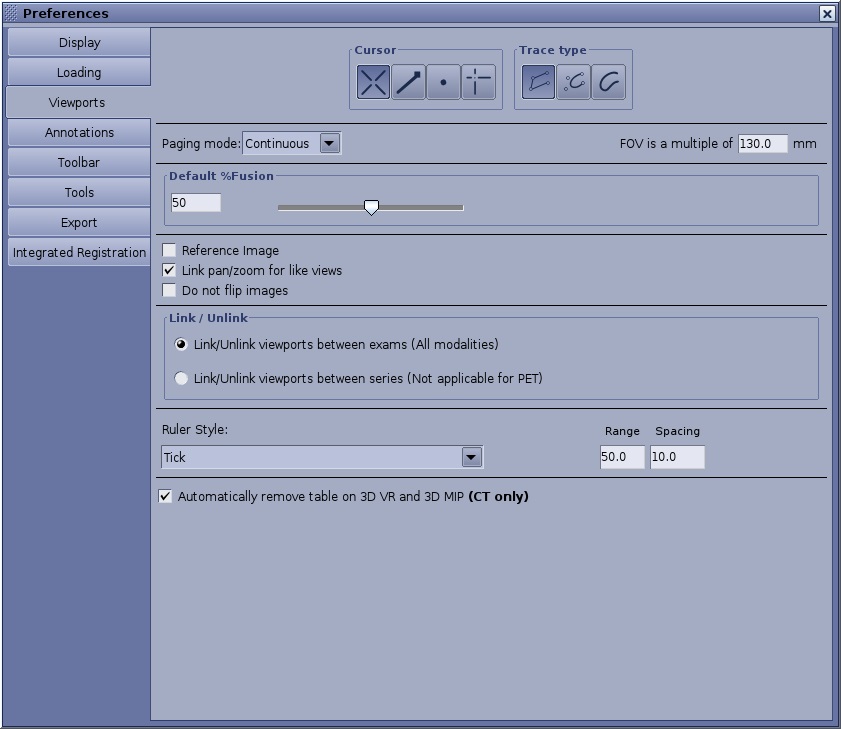
To view the Viewport Preferences screen, from the MR General Review work area, click the  in the upper right corner. From the Preferences menu, click Viewports.
| Number | Description/Procedure |
|---|---|
| 1 | Click the cursor type to be used as the default: crosshair, arrow, dot, or full cross. Click the trace type to be used as the default: polygon, smooth trace or free hand. |
| 2 | From the Page mode menu, make a selection that determines how the Page mode icon  behaves. behaves.
Enter a value in the FOV is a multiple text box to define the steps when adjusting the FOV with left/right mouse buttons. E.g. when the value is set to 130 mm, an original DFOV of 37.5 cm decreases with a left-click to 26 cm, then 13 cm, then 6.5, etc. |
| 3 | Enter a value in the Default % Fusion text box or adjust the value with the slider. The default fusion % is used when creating fused views via drag and drop method. |
| 4 | Click Reference image to display/hide a reference image in the viewports corner. Click Link pan/zoom for like views to pan and zoom all the viewports with the same plane displayed (Axial, Coronal, Sagittal and Oblique views). Click Do not flip images to prevent the system from automatically flipping the image orientation and thus retain the original orientation. |
| 5 | Link/Unlink
Click a Link/Unlink option when multiple exams are loaded. Unlink the views applies to:
|
| 6 | Ruler Style
From the Ruler style menu, make a selection that determines the ruler style. The options include:
|
| 7 | Remove table
Only applicable for CT scans. |