- 00000018WIA30103870GYZ
- id_400264471.7
- May 17, 2022 4:35:51 PM
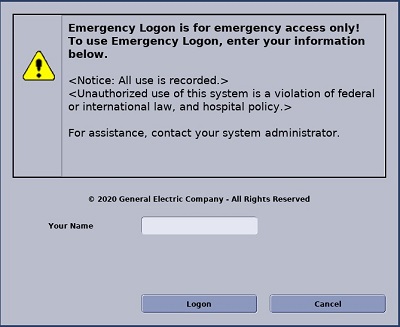
System emergency logon
About this task
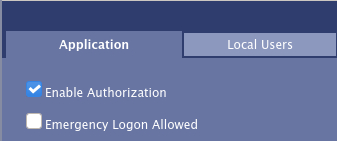
When using Emergency Logon, you are prompted to enter your name, but there is no password. To protect patient health information, only enable Emergency Logon if the operator console room is protected by physical security measures, such as card key access.
Use Emergency Logon only if you do not have a valid account set up.
Step-by-step instructions
- Click Logon. One of two actions occurs:
- The screen unlocks and displays the desktop that was last visible right before the screen was locked.
- The system starts-up or re-boots.
Figure 2. Emergency logon