

- 00000018WIA303BC770GYZ
- id_400245751.7
- Aug 29, 2022 7:47:35 PM
Preferences
Preferences allow you to set default behaviors for a number of different features.
 and select System Preferences.
To open the Exam Preferences screen, click the Scan Session menu and select Preferences.
System Preferences
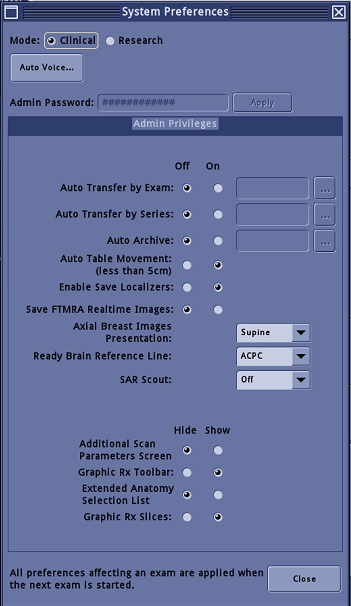
| Parameters | Description |
|---|---|
| Mode | Mode selects the operation mode of the system; Clinical or Research. For details, see: |
| Auto Voice... | The AutoVoice button opens the Auto Voice Management Tool Screen. |
| Auto Transfer | Allows you to define the transfer node and turn on/off automatic transferring images at the exam or series level. Auto Transfer by Exam begins transferring images to the selected node after the exam has ended. Auto Transfer by Series begins transferring images to the selected node after each series is completed. Images created within the session, including those images created when the session is in a end session state, are transferred. Images created after the exam has ended, such as post processed images, must be manually transferred. |
| Auto Archive | Allows you to define the archive device and turn on/off the automatic archival of images at the exam level. When scan completes, the exam is automatically placed in the archive queue and transferred to the archive node(s). Images created within the session, including those images created when the session is in a end session state, are transferred. Images created after the exam has ended, such as post processed images, must be manually archived. |
| Auto table movement | The state of this selection is held across exams and system reboots. For details, see: |
| Enable Save Localizers | Allows automatic saving of the Graphic Rx lines that appear in all three viewports. For details, see: |
| Save FTMRA Realtime images | Allows you to save pre-trigger FTMRA real-time images as a separate series. For details, see: |
| Axial Breast Images Presentation | Allows you to present breast images as either Supine or Prone. For details, see Scan Anatomy: Breast imaging. |
| Ready Brain Reference Line | Allows the selection of either the ACPC or OML line for the Ready Brain scan. For details, see: |
| SAR Scout | SAR Scout is for head and neck imaging on 3.0T systems. It is used to determine the appropriate SAR control parameters based on the scan location. For details, see: |
| Graphic Rx Slices | Allows you to set a default preference to hide or show the 2D scan lines on a localizer when in Graphic Rx. For details, see: |
| Hide/show options | Toggle switches that allow you to have a default hide/show state. For details, see: |
Exam Preferences
Exam Preferences allow you to set the preferences for the currently active scan.
The image transfer and table movement options can be set differently than the System Preferences, which allows you to have unique settings for a single patient without disrupting the system preferences. For example, the cardiac viewing station is temporarily off the network. You can change the auto transfer of images to another node for the current patient and leave the system preference as is.
Consider the following in regard to Exam Preferences.
- When a session is saved to a protocol, the last preferences selected during the session are saved and then restored when the protocol is loaded.
- Session preferences by default (or when reset) follow the equivalent system level preference, if applicable.
- If duplicate network destinations are selected between the system and the exam preferences, the session level preference overrides the system level preference.
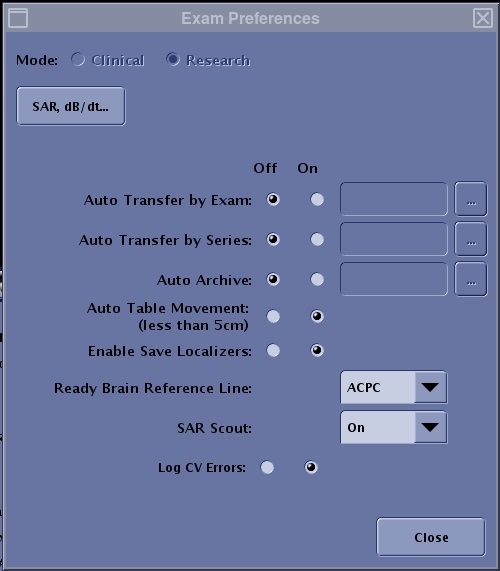
| Parameter | Description |
|---|---|
| Mode | Mode selects the operation mode of the system: Clinical or Research. For details, see: |
| SAR, dB/dt... | SAR, dB/dt... opens the SAR and dB/dt screen and allows you to change the SAR or dB/dt level within the currently active scan session. |
| Auto Transfer | For the currently active scan session, Auto Transfer allows you to define the transfer node and turn on/off automatic transferring images at the exam or series level. Auto Transfer by Exam begins transferring images to the selected node after the exam has ended. Auto Transfer by Series begins transferring images to the selected node after each series is completed. Images created within the session, including those images created when the session is in a end session state, are transferred. Images created after the exam has ended, such as post processed images, must be manually transferred. |
| Auto Archive | For the currently active scan session, Auto Archive allows you to define the archive device and turn on/off the automatic archival of images at the exam level. When scan completes, the exam is automatically placed in the archive queue and transferred to the archive node(s). Images created within the session, including those images created when the session is in a end session state, are transferred. Images created after the exam has ended, such as post processed images, must be manually archived. |
| Auto Table Movement | The state of this selection is held for the currently active scan session. For details, see: |
| Enable Save Localizers | Allows automatic saving of the Graphic Rx lines that appear in all three viewports. For details, see: |
| Ready Brain Reference Line | Allows selection of either the ACPC or OML line for the Ready Brain scan. For details, see: |
| SAR Scout | SAR Scout is for head and neck imaging on 3.0T systems. It is used to determine the appropriate SAR control parameters based on the scan location. For details, see SAR Scout scan. |