

- 00000018WIA30E4E190GYZ
- id_400241361.1
- Jun 18, 2022 3:16:52 AM
AIRTM Recon DL save source images procedure
Use these steps if you want both the original and the AIRTM Recon DL images.
- From the screen header area, click the Tool icon arrow

- From the Tools menu, select System Preferences.
- From the System Preferences screen, type and enter your password in the Admin Password text field and click Apply
- Only MR users that have been assigned to the GESystemPreferenceGroup by the site administrator will have a password and thus the privilege to make changes.
- From the System Preferences screen, click the Save Recon DL Source Images On option button to turn it on.
- The result is that both the original and AIR™ Recon DL images will be reconstructed into separate series.
- Note that the images from the Original series do not appear in AutoView; only the AIRTM Recon DL images display in the AutoView window. Both series appear in the Patient List.
- Note that since the change is on a system level, you must end the current exam and start a new exam before the Save Recon DL Source Images option is activated.
Figure 1. Preferences screen 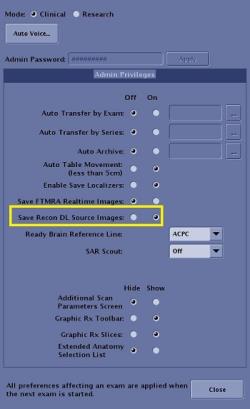
- Click Close to exit the Preferences screen.
Considerations
Note: Consider the following scenarios when selecting Save Original scan parameter option box.
- If AIRTM Recon DL is turned Off and Save Original is turned On, then:
- N (the scanned series displayed in the Patient List) only has the image enhancer (for example, PURE) applied.
- The saved original series is N + 40000, which has no image enhancer applied.
- If AIRTM Recon DL is turned On, Save Original is turned On and the Save Recon DL Source Images option on the Preferences screen is turned On, then:
- N (the scanned series displayed in the Patient List) has both AIRTM Recon DL and any image enhancer (for example, PURE) applied.
- The saved original series is N + 40000, which has neither an image enhancer (for example, PURE) nor AIRTM Recon DL applied.
- If AIRTM Recon DL is turned On, Save Original is turned Off and the Save Recon DL Source Images option on the Preferences screen is turned On, then:
- N (the scanned series displayed in the Patient List) has both AIRTM Recon DL and any image enhancer (for example, PURE) applied.
- The saved original series is N + 40000, which has no AIRTM Recon DL applied but the image enhancer is applied.
| AIR Recon DL | Save Original | Save AIR Recon DL Source | N | N+40000 |
|---|---|---|---|---|
| Off | On | Off |
No AIR Recon DL Yes Image enhancer |
No AIR Recon DL No Image enhancer |
| On | On | On |
Yes AIR Recon DL Yes Image enhancer |
No AIR Recon DL No Image enhancer |
| On | Off | On |
Yes AIR Recon DL Yes Image enhancer |
No AIR Recon DL Yes Image enhancer |