Threshold: extract a selected range of voxel values
About this task
Use these steps to extract a selected range of voxel values that represent a specific tissue or anatomical feature.
Step-by-step instructions
Open the MR General Review.
Select the desired image from which you want to threshold.
From the Segmentation Toolbar, click the Threshold icon () to view the Threshold screen.
Figure 1. Threshold screen
From the Threshold screen, adjust the range of voxel values using either the sliders or typing in a minimum and maximum value.
The voxels with values within the threshold range defined by the sliders are displayed in green on all views.
Click Apply Threshold to display only the part of the 3D volume with voxel values inside the set range.
You can continue to reduce the voxel value range. You cannot expand the range to return to an earlier setting, except by means of Undo directly after using Apply Threshold. If you inadvertently reduce the voxel value range too much, reload the exam.
Use the Keep Object button and/or the Remove Objects button to select and/or remove the resulting 3D objects, and then use the Scalpel Tool icon () and the Paint on Slices Tool icon () to refine the definition of the region of interest.
Place the cursor on the object you want to keep.
Click Keep Object. All objects not connected by one or more voxels are removed.
Place the cursor on the object you want to remove.
Click Remove Objects. All objects and everything physically connected to the current 3D cursor position via one or more voxels is deleted from the view.
Warning
The use of thresholding for the building of the 3D model excludes all voxel values outside the selected range from the 3D model. Before applying the threshold(s), make sure that the selected threshold settings will not result in removing pathologies or other essential anatomical structures from the 3D model.


 ) to view the Threshold screen.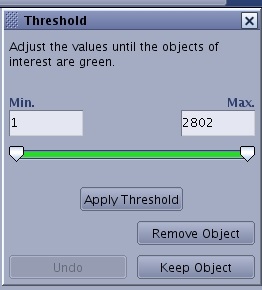
 ) and the Paint on Slices Tool icon (
 ) to refine the definition of the region of interest.