Select the desired baseline view with a vessel visible.
From the Segmentation Toolbar, click one of the following.
One-Click Trace icon ()
Two-Click Trace icon ()
From any view, click and deposit one or two points within a vessel structure, based on the selected segmentation icon.
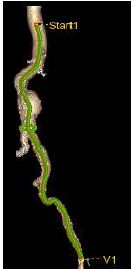
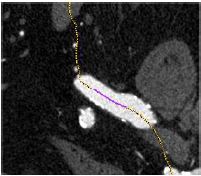
The software automatically computes the centerline of the vessel, starting from the selected point(s). The layout is automatically updated, including curved, lumen and cross section viewports. View the progress bar in the lower left corner of the screen.
It is possible to track multiple vessels, by adding new start points.
Figure 1. Quick trace
To edit the vessel, follow these steps.
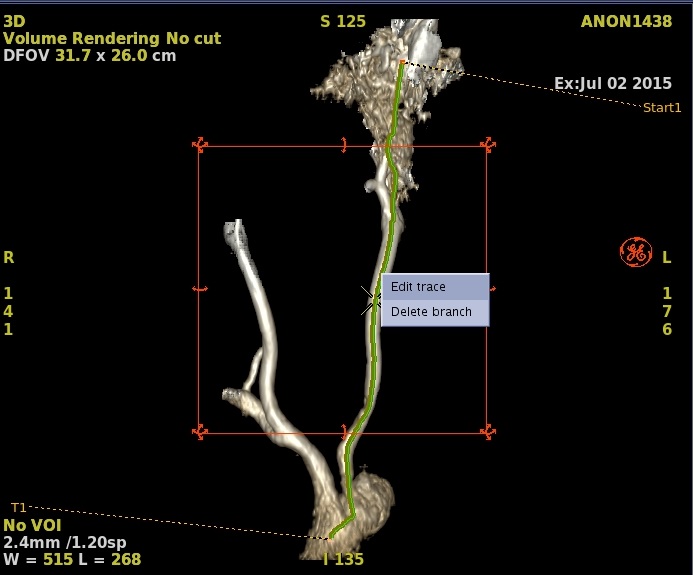
Figure 2. Edit trace
Right-click on the active trace.
Select Edit trace.
Click and drag to edit the trace.
Right-click and select Accept to validate the trace edition.
Right-click and select Delete branch to delete the trace, if desired.


 )
) )
)