

- 00000018WIA306BC770GYZ
- id_400229981.3
- Aug 31, 2022 1:08:31 PM
User interface
About this task
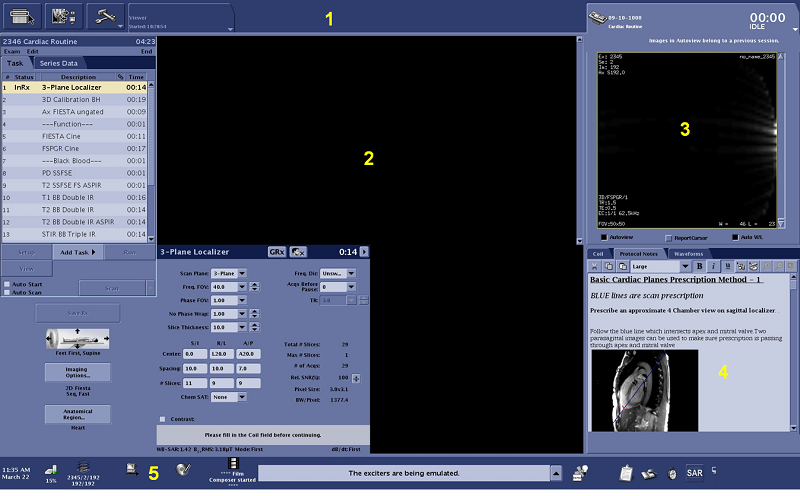
| Number | Screen area | Description |
|---|---|---|
| 1 | Header | Contains the Worklist Manager, Image Management, and System Management icons and Scan, Protocol, and Review session tabs for changing the work area display. |
| 2 | Work areas | The Work area content changes based on the session or icon selected from the header. Once a session tab or icon has been selected, the work area content can be changed based on your selections. For details see: |
| 3 | Auto View | AutoView displays images in the order they are reconstructed. |
| 4 | Protocol Notes Waveforms Coils | This area displays multiple tabs:
|
| 5 | Footer | Contains system status messages, icons for Reconstruction, Network, Archive, Film, and Disk Space status, and icons to access Hardware, Stopwatch, and Online Help. |
- Control panels
- Control panels are comprised of selectable buttons. Feature applications such as READY View , Volume Viewer, and Viewer all have control panels.
- Linking
- Linking allows you to connect series or images in scan and volume viewer.
- Pull-down menus
- A drop-down or pull-down menu capability is indicated by an arrow. For example, all session tabs have drop-down menus.
- Screen
- Screens or windows are free floating. They typically appear within a workflow and require you to respond before you can move to the next step in the workflow. An example of a screen is the SAR and dB/dt screen that appears in the New Patient workflow.
- Session
- A session is a workflow activity involving scan, review, and/or protocols. Sessions are identified by tabs displayed in the header or across the top of the screen. The tab always indicates the session type.
- Tabs
- Tabs are used throughout the user interface to organize applications and features. For example, in the lower right corner of the screen there are 3 tabs: Coil, Protocol Notes and Waveforms.
Figure 2. Scan screen tabs 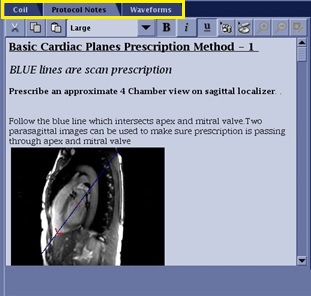
- Task
- A task is a piece of work assigned in the Workflow Manager. The tasks can be scan data or post-processed data tasks.
- Workflow
- A workflow provides an order in which specific tasks are to be performed. You can find workflows in Procedure folders, such as the Manual Prescan Workflow. Another example is the Workflow Manager, used for scan and post-processed data tasks.
- Worklist
- A worklist displays a list of "to do" tasks. From the Worklist Manager, you can schedule and select patients for scan activities, enter patient demographic information, complete HIS/RIS tasks, and start an exam.