• Object ID: 00000018WIA30BBC770GYZ
  • Topic ID: id_40024751 Version: 1.8
  • Date: Jul 7, 2022 4:43:21 PM

Header area

The icons and session tabs in the header area always appear on the screen.

Table 1. Header area
Header areaWork area
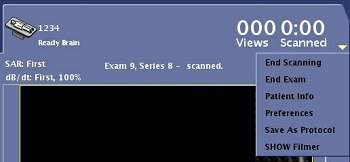
Click Scan Session tab to view the:
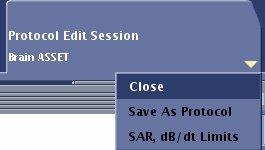
Click Protocol Session tab to view the Protocol work area.

One protocol session is allowed.

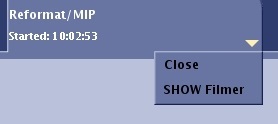
Click Review Session tab to view Review work area.

Up to two review sessions are allowed if system resources are available.

Click Worklist Manager icon to display the Worklist Manager work area. The Worklist Manager area is used to:
  • Schedule patients
  • Select patients for scan activities
  • Enter patient demographic information
  • Complete HIS/RIS tasks
  • Start an exam
Click Image Management icon to display the Image Management work area. The Image Management work area is used to:
  • Archive/network images
  • Select an exam/series/image
  • Launch an application from the Session Management, Data Management or Tools lists

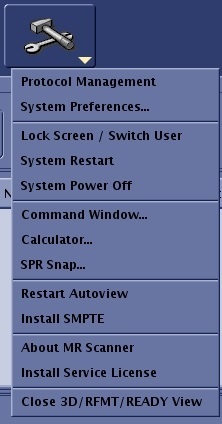
Click the Tools icon to display the Tools work area and Tools menu. The Tools work area has multiple tabs that open unique work areas that are used to:
  • Open a protocol session to create or edit protocols from the Protocol Organize tab.
  • Initiate a TPS Reset from the Service Desktop Manager tab
  • Define multiple system settings from the Guided Install feature on the Service Desktop Manager tab
  • Define several system preferences from the System Preferences selection on the Tools pull-down menu
  • View error log and write a note to your service representative. For details, see Error log write a message procedure.
  • View and select options on the Gating Control screen from the GATING tab
  • The menu allows access to additional functions
    • Lock the screen and switch users
    • Perform a System Restart
    • Perform a system shutdown or power off
    • Open a Command window
    • Open a calculator
    • Initiate an SPR snap
    • Restart Autoview
    • Install SMPTE
    • View the About MR Scanner screen
    • Install a service license
    • Close 3D/ Reformat or READY View applications