

- 00000018WIA307DB770GYZ
- id_400216071.2
- Aug 31, 2022 1:37:53 PM
Extended Anatomy Selection List
About this task
Step-by-step instructions
- From the screen header area, click the
 and select System Preferences.
 - From the System Preferences screen, complete one of the following:
Figure 1. Bottom area of System Preferences screen 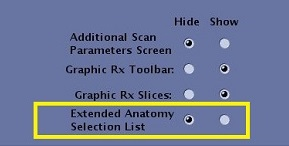
- From the Extended Anatomy Selection list option, click Hide for a limited number of options to display on the list.
Figure 2. Limited Anatomical Region list 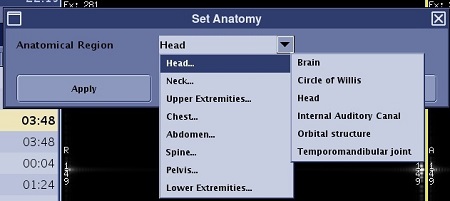
- From the Extended Anatomy Selection list option, click Show for all options to display on the list.
Figure 3. Extended Anatomical Region list 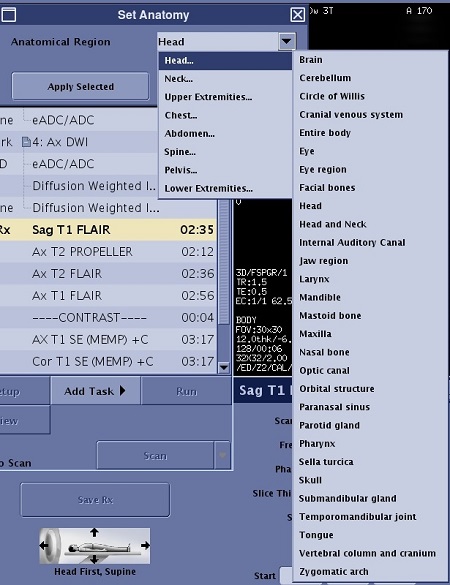
- From the Extended Anatomy Selection list option, click Hide for a limited number of options to display on the list.