- 00000018WIA30B31870GYZ
- id_400259301.7
- Jun 27, 2022 1:25:00 PM
Define a patient landmark with Intellitouch
About this task
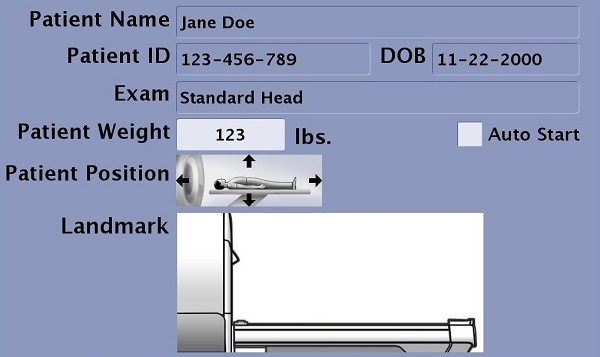
If no landmark has been established, the in-room monitor does not display a green landmark line nor scan time.
Step-by-step instructions
- Press the IntelliTouch landmark strip on either side of the table at the location where you want to establish a landmark. The landmark location appears as a dotted green line on the in-room display.
Figure 2. Landmark location is dotted green line 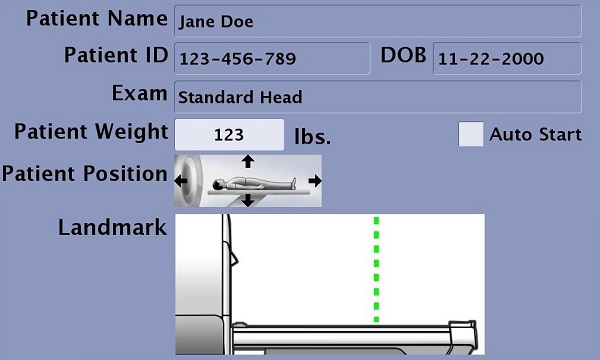
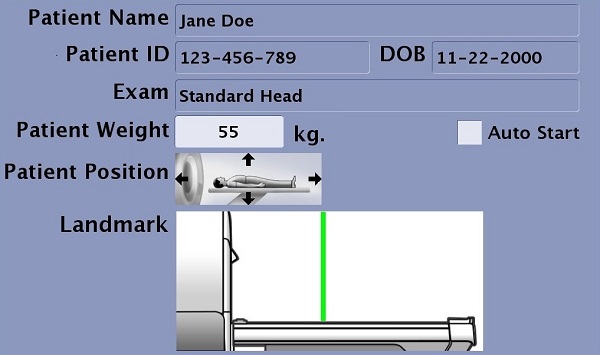
- Press Landmark or Advance to Scan from the Magnet control panel within 5 seconds of pressing the Touch and Go strip. The cradle position reads zero and the landmark changes from a dotted to solid green line on in the in-room display.
- If more than 5 seconds elapse between touching the Touch and Go strip and pressing Landmark or Advance to Scan, the green landmark line is removed from the in-room display and the previous landmark is used if one has been established for the current patient.
- To display the dotted green landmark line, press the Touch and Go strip again, and then press Landmark or Advance to Scan to establish the landmark.
Figure 3. Landmark is a solid green line