• Object ID: 00000018WIA30F6E880GYZ
  • Topic ID: id_2035063 Version: 1.6
  • Date: Aug 31, 2022 12:55:55 PM

Start the McAfee scan manually

Before you begin

  • Your site must purchase the McAfee antivirus option from GE. Contact your sales representative for more information.
  • You must have an existing and functional ePo server, along with the server details and access to the machine it is set up on.
  • A GE MR system that is to be scanned for threats.
  • The antivirus scan might take over an hour. Therefore, do not start an antivirus scan until you are finished with clinical scanning for the day.

About this task

Use these steps to start an antivirus scan on a GE MR system connected to a McAfee ePo server.

Step-by-step instructions

  1. In the header area of the screen, click the Tools icon .
  2. In the System Management work area, click the Service Desktop Manager tab.
  3. In the Service Desktop Manager, click Service Browser.
  4. In the MR Service Desktop screen, click the Utilities tab.
    Figure 1. MR Service Desktop tabs area
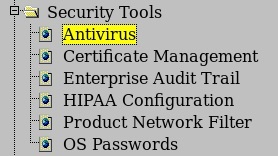
  5. In the Security Tools folder, select Antivirus.
    Figure 2. Security Tools folder
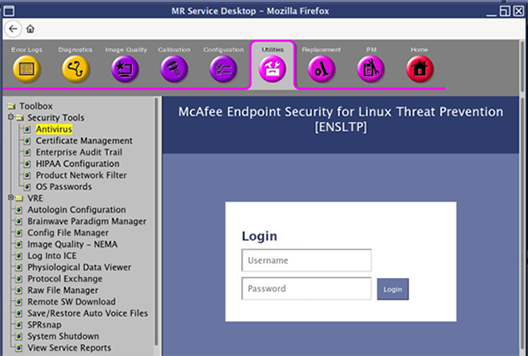
  6. Log in as an administrative user.
    Figure 3. McAfee login screen
  7. Click the Antivirus Scan tab.
  8. Click Start Scan.
    • When the antivirus scan starts, the Status Information box notifies you that the it is running.
    • When the antivirus scan is complete, the Status Information box displays that the scan is completed, and the Scan Results details can be seen in the lower half of the screen.