

- 00000018WIA30933970GYZ
- id_400248591.2
- Mar 17, 2022 12:49:38 PM
Synthetic DWI workflow
Use these steps to compute the Synthetic DWI images. The data sets for the application are provided by the DWI acquisition. For details, see Synthetic DWI scan procedure.
Synthetic DWI is commercially known as MAGiC DWI.
| Warning | |
|---|---|
- From the header area of the screen, click the
 to open the Image Management work area.
 - From the exam area on the Patient List, select the desired exam that has a Prospective DWI series.
- From the series area on the Patient List, select the desired DWI series that contain 2 or more b-values without T2 images or 1 or more b-values with a T2 image.
- READY View Synthetic DWI is not compatible with a series including multiple groups of slice locations.
- To access more than one series, see View another series within a Review Step.
Figure 1. Patient List with DWI source prospective series selected 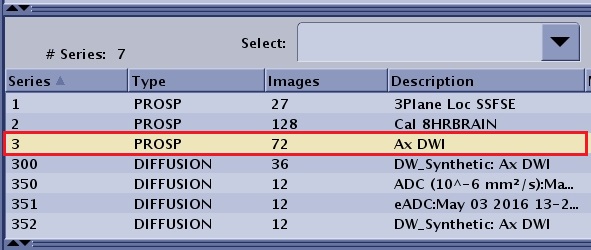
- From the Session Apps list, click SyntheticDWI to launch Synthetic DWI.
Figure 2. Session Apps list 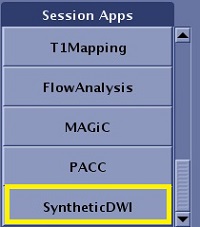
- The left viewport displays the DWI image with the first b-value from the prospective DWI series.
- The other viewports display the Synthetic DWI images generated in READY View.
Figure 3. Synthetic DWI review step in READY View screen 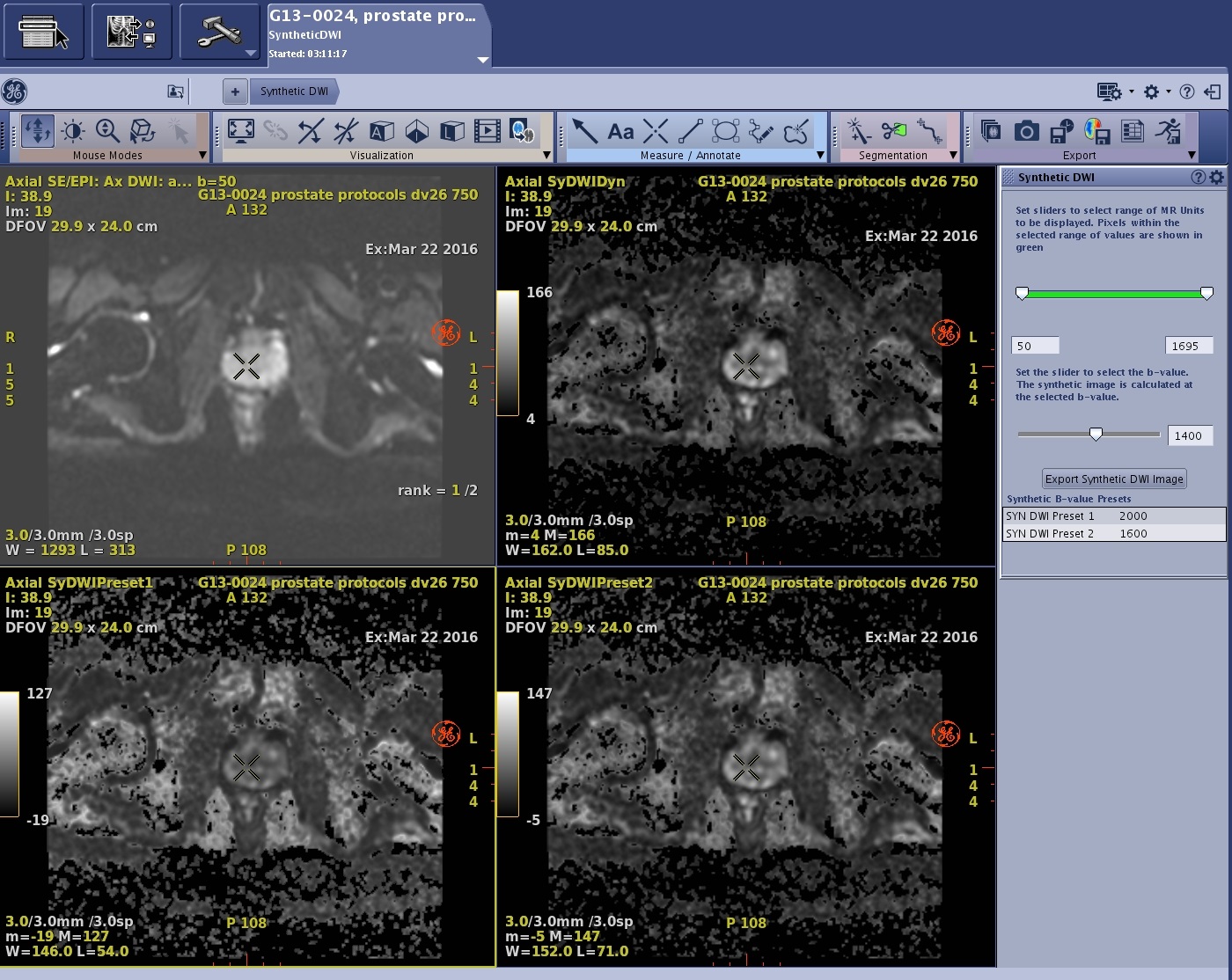
- Locate the area of interest.
- For more image selection details, see Scroll through the images.
- From the Synthetic DWI screen, click and drag the b-value slider to adjust the b-value of the Synthetic DWI dynamic image (SYN DWI Dynamic) in the upper right viewport. This is the b-value that is used to generate the synthetic DWI image from Ready View.
- Alternatively use the text box to the right of the slider.
- The available b-value of the synthetic DWI is described in Synthetic DWI scan procedure.
- Adjust the W/L and magnification.