Every person who has permission to use the system is a user. Users are set up by a system administrator (there can be only one system administrator). The administrator may be an IT person in an enterprise environment, or a site manager or lead tech in stand-alone environments.
The administrator adds new users and assigns the users to a group, which dictates the level of privileges a person will have. For example, a user named Sue Smith could belong to a group called technologists, radiologists, administrators, or any combination. Sue may have privileges for ProtocolEdit, GESystemPreferenceGroup but no permission for GELevel2Group.
Groups tab
All groups require a password. You can create new groups. These groups are standard:
stdgroup: This group is for any normal user. Any local user created, by default, falls into this group. The users in this group can scan but have no other special privileges.
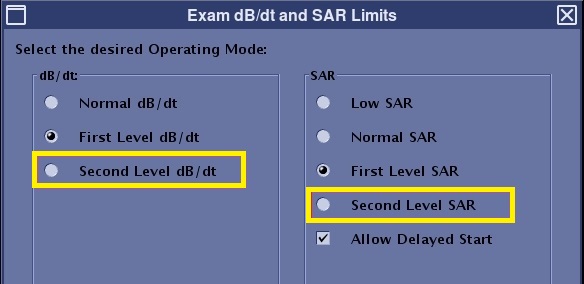
GELevel2Group: For research sites, Second Level SAR and Second Level dB/dt are available options. Figure 1. Example of: SAR and dB/dt limits screen
ProtocolEdit: The user can edit site protocols.
GESoftwareInstaller Group: The user can accept and install a new GE software update.
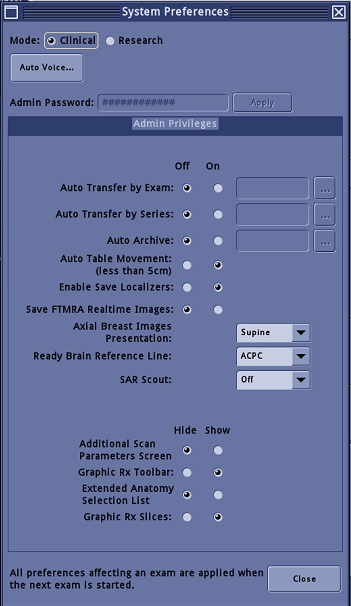
GESystemPreferenceGroup: The user can make changes to the System Preferences screen. Figure 2. Example of: System Preferences screen
Enterprise tab
If your facility uses the Enterprise option with role-based membership, and you have clicked Enable Authorization on the Application tab and Enable Enterprise Authentication on the Enterprise tab, contact your IT department for the Group Membership name that can access the scanner.
After obtaining the Enterprise Group Membership name, from the Groups tab, click Add Enterprise Group and enter the name provided by the IT department. From the Groups tab, apply the roles for the group. You must select at least one role.
Failure to add these roles to the Groups tab may inadvertently lock all users out of the scanner.