

- 00000018WIA30FBDC80GYZ
- id_20365811.1
- Feb 16, 2022 1:12:52 PM
Edit Patient Data
About this task
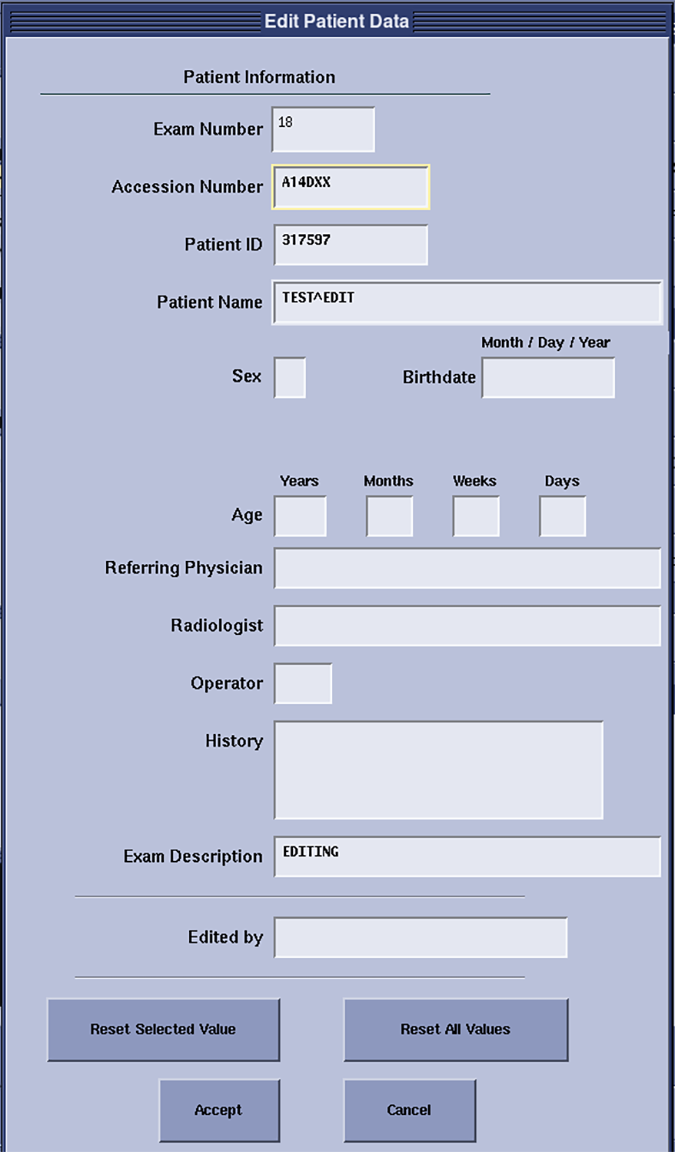
- You can edit all fields, except for the patient weight.
- The system creates a new exam that replaces the original exam.
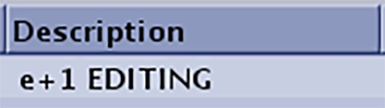
- You can edit the same exam multiple times. The edited exam has a prefix indicating the number of times that it has been edited. In this example, the exam has been edited once.
- You may only edit a case after it ends and if it is not in use by any other application.
The exam must originate from your system and have the same System ID.
The exam must not be too old. The default is 14 days. To change the default, go to the Service Desktop, then .
Step-by-step instructions
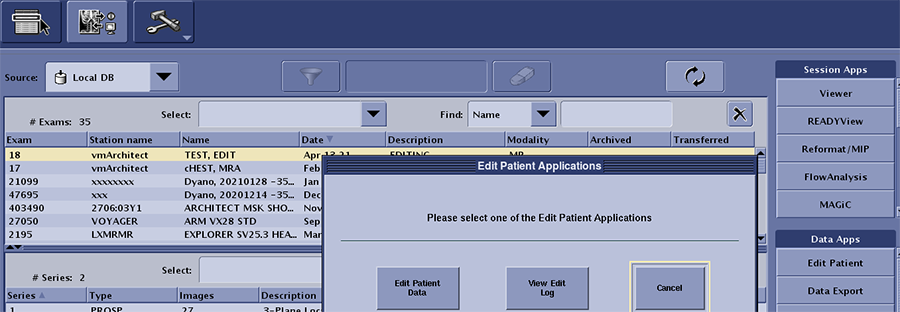
- Select the Edit Patient button under Data Apps. When prompted, select Edit Patient Data.
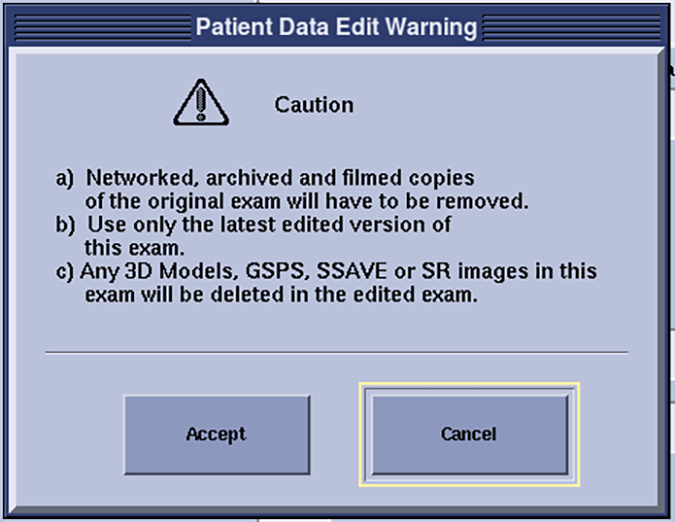
- Read the warning and select Accept.
Result
The Edit Patient Data screen opens. - When you are finished, type your name or initials (minimum of 3 letters). Click Accept.
Result
The system keeps a viewable log of any changes.