- 00000018WIA3047E870GYZ
- id_400230841.2
- Dec 23, 2021 3:04:42 PM
Create links to Ready Brain
About this task
- A Ready Brain task can only be linked to a destination task whose Scan Plane is 3-Plane or Oblique.
- If you create a link from Ready Brain to an oblique series, then the supported Geometry includes: Axial, Sagittal, Coronal and 3-Plane.
- If you create a link from Ready Brain to a 3-plane localizer, then the only supported Geometry is 3-Plane.
- If you create a link from Ready Brain to an orthogonal task, no Geometry is supported.
- When a selected Geometry is not supported by all the destination tasks, the partly supported label displays (tasks is in italics).
Step-by-step instructions
From the Workflow Manager, select the Ready Brain task.
- Press and hold Ctrl and simultaneously select a scan task you want to link to the Ready Brain scan.
- Right-click the scan task to open the Set Link screen.
Figure 1. Ready Brain right-click window 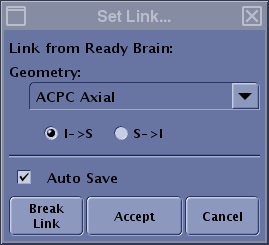
Figure 2. Ready Brain Geometry menu 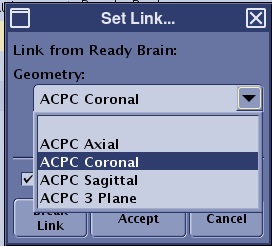
- From the Geometry menu, select the desired scan plane
- Select the desired slice acquisition direction.
- Optional: select Auto Save.
- The series is automatically linked to the Ready Brain 3D Loc and the series is moved to the RxD state.
- Only select Auto Save if it is not necessary to check the Ready Brain scan prior to acquiring the linked tasks.
- Click Accept.
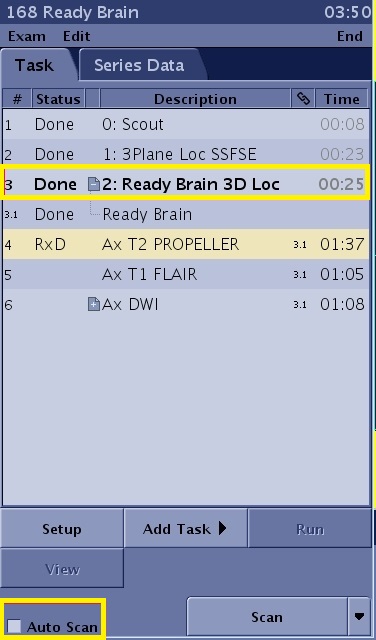
- From the Workflow Manager click Auto Scan.
- If Auto Save and Auto Scan are both selected, each series in the RxD state is automatically scanned.
- If Auto Scan is not selected, then you must click Scan to initiate each task.
Figure 3. Workflow Manager shows Ready Brain post process task in Done state and subsequent series are linked